
Screen Atlas
Screen Atlas
57 captures, all produced by the wallet's own deterministic visual harness and exported only after their pixel state was proven. Every image names the wallet version and commit it was captured from, and a capture of one release never represents another.
All captures (no JavaScript required)
The complete listing, usable without JavaScript or search. Each entry links its deep link and its image.
Address type selection (address-type--dark--360)
A list of address type cards, each naming a derivation model and showing any balance found on it. Continue at the bottom is disabled while the wallet scans derivation paths for existing balances.
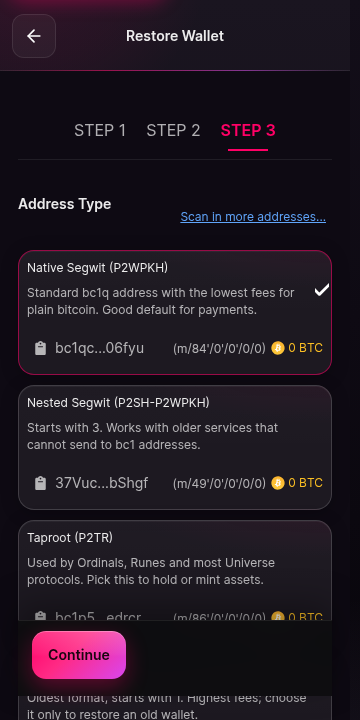
Address type selection - Picking the address model for the wallet. The Continue control stays disabled until the scan of each path finishes. Address type selection (address-type--dark--400)
A list of address type cards, each naming a derivation model and showing any balance found on it. Continue at the bottom is disabled while the wallet scans derivation paths for existing balances.
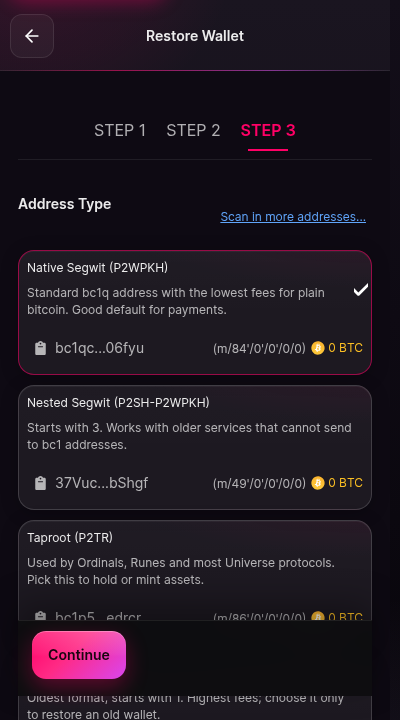
Address type selection - Picking the address model for the wallet. The Continue control stays disabled until the scan of each path finishes. Connection request (approval-connect--dark--400)
The approval window for a connection request. The requesting origin is shown as example-site.test, a clearly synthetic address. The request names the account access it wants. Approve and reject controls sit at the bottom, with reject as the safe default.
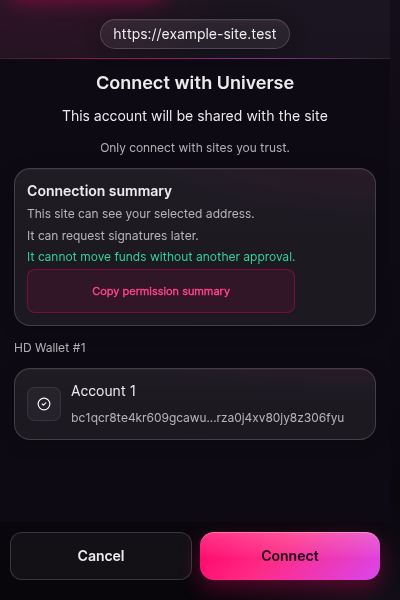
Connection request - What a site sees requested and what the user is asked to approve: the origin, the requested access, and nothing else. Connection request (approval-connect--light--400)
The approval window for a connection request. The requesting origin is shown as example-site.test, a clearly synthetic address. The request names the account access it wants. Approve and reject controls sit at the bottom, with reject as the safe default.
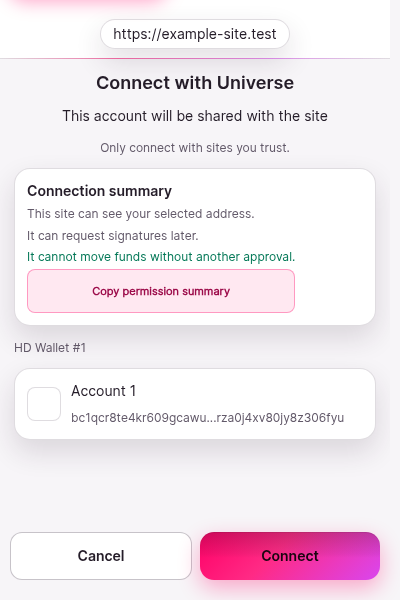
Connection request - What a site sees requested and what the user is asked to approve: the origin, the requested access, and nothing else. Chain switch request (approval-switch-chain--dark--400)
The approval window for a chain switch. The request states that the site example-site.test wants to switch the chain from the current value to Bitcoin Testnet. Approve and cancel controls sit at the bottom.
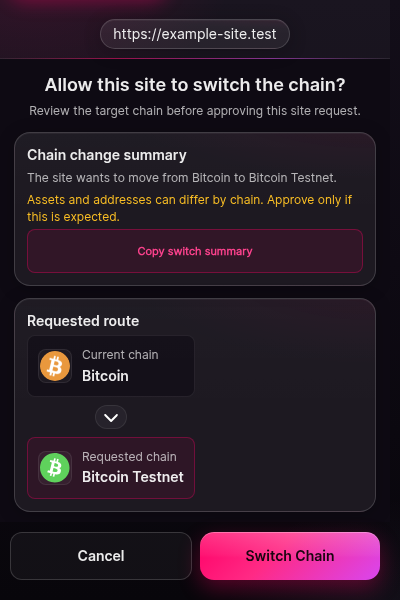
Chain switch request - A site asking to move the active chain. The request names both the current and the requested chain. Chain switch request (approval-switch-chain--light--400)
The approval window for a chain switch. The request states that the site example-site.test wants to switch the chain from the current value to Bitcoin Testnet. Approve and cancel controls sit at the bottom.
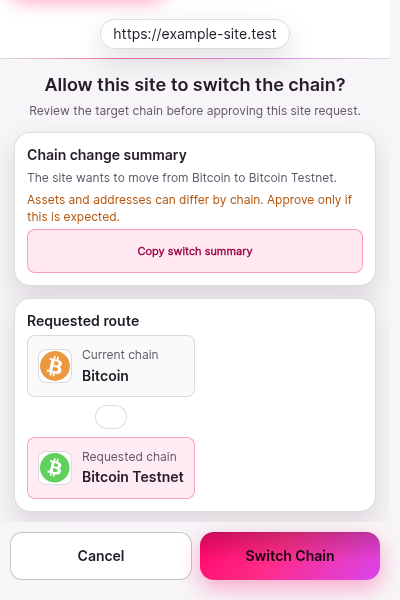
Chain switch request - A site asking to move the active chain. The request names both the current and the requested chain. Unverified origin gate (approval-unverified-origin--dark--400)
A full-window gate titled unable to verify this site. Body text explains that the wallet could not complete its site check and that the request is blocked until verification succeeds. No approve control is offered.
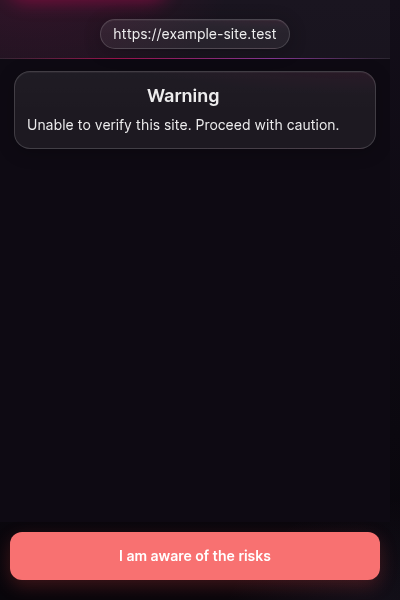
Unverified origin gate - The gate shown instead of an approval when the wallet cannot verify the requesting site. Unverified origin gate (approval-unverified-origin--light--400)
A full-window gate titled unable to verify this site. Body text explains that the wallet could not complete its site check and that the request is blocked until verification succeeds. No approve control is offered.
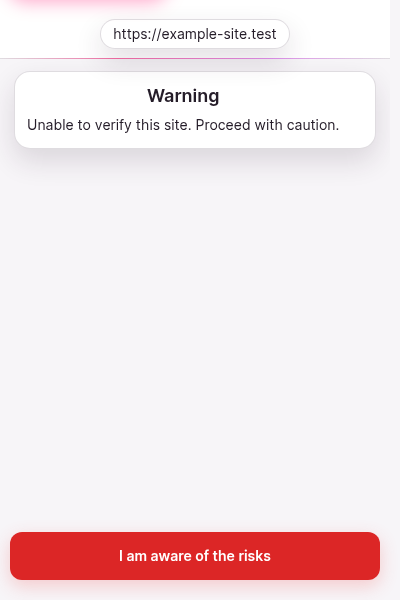
Unverified origin gate - The gate shown instead of an approval when the wallet cannot verify the requesting site. Create a password (create-password--dark--360)
A two-field form titled Create a password. Both fields are masked. Helper text explains that the password is used to unlock the wallet on this device. A Continue button sits at the bottom and stays disabled until both fields are filled.
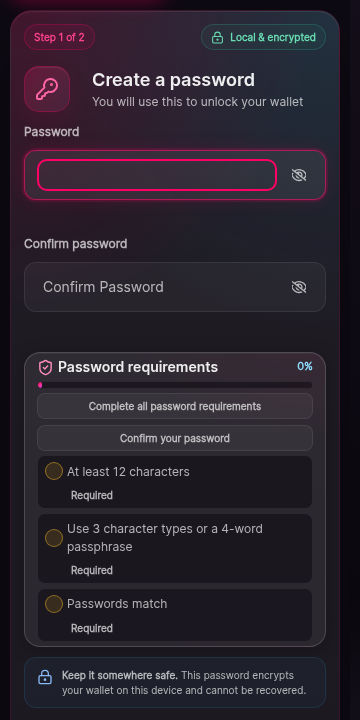
Create a password - Password creation during setup. The password unlocks this device only; it never replaces the recovery phrase. Create a password (create-password--dark--400)
A two-field form titled Create a password. Both fields are masked. Helper text explains that the password is used to unlock the wallet on this device. A Continue button sits at the bottom and stays disabled until both fields are filled.
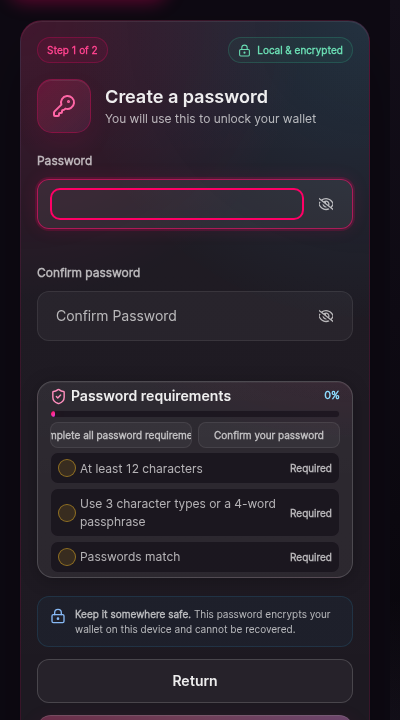
Create a password - Password creation during setup. The password unlocks this device only; it never replaces the recovery phrase. Wallet tools hub (discover--dark--1100)
The discover hub screen. A grid of wallet tool cards covers portfolio analytics, the NFT gallery, and other utilities. Cards whose underlying operation is not authorized in this release render in a muted unavailable state.
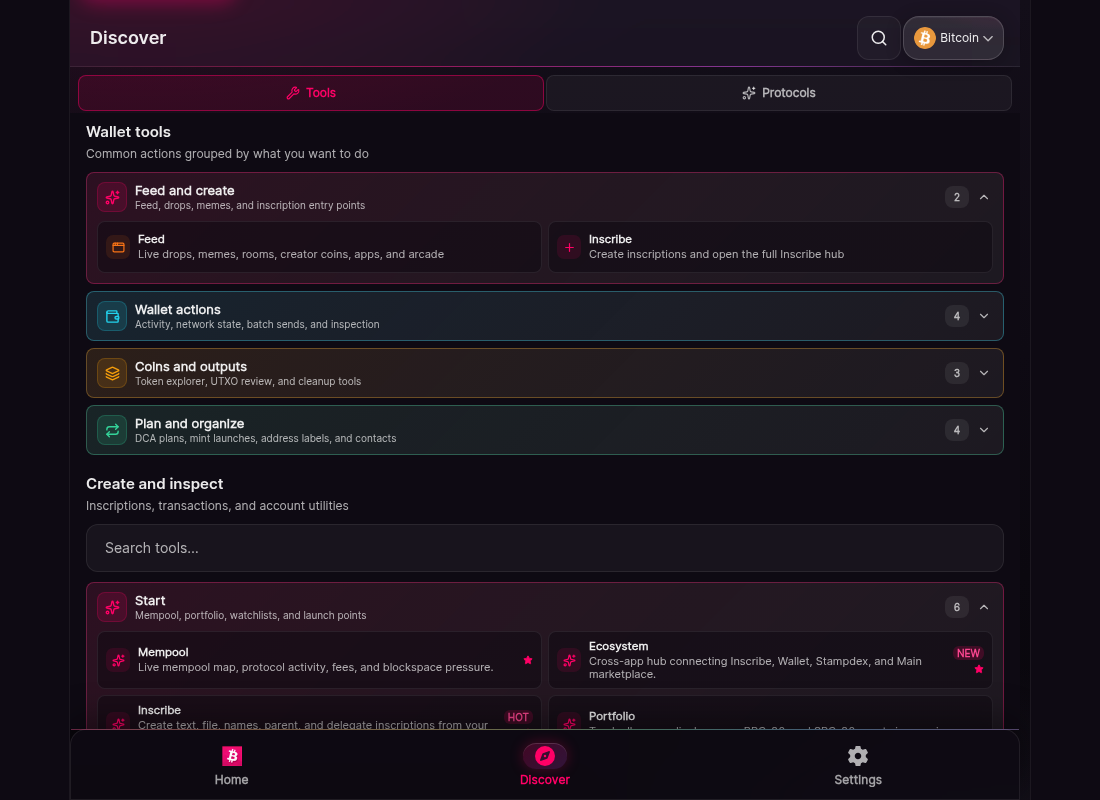
Wallet tools hub - The discover hub listing wallet tools. Entries that need an unauthorized operation are inert here. Wallet tools hub (discover--dark--360)
The discover hub screen. A grid of wallet tool cards covers portfolio analytics, the NFT gallery, and other utilities. Cards whose underlying operation is not authorized in this release render in a muted unavailable state.
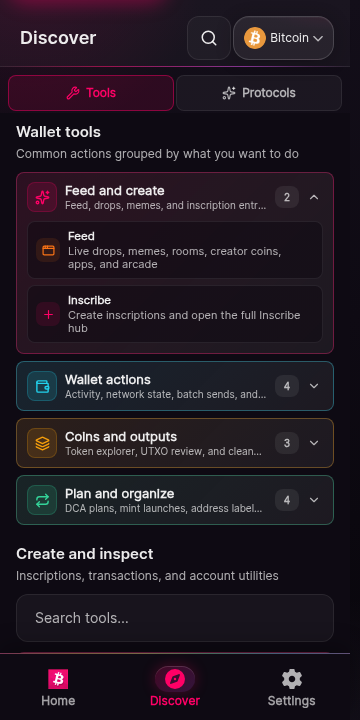
Wallet tools hub - The discover hub listing wallet tools. Entries that need an unauthorized operation are inert here. Wallet tools hub (discover--dark--400)
The discover hub screen. A grid of wallet tool cards covers portfolio analytics, the NFT gallery, and other utilities. Cards whose underlying operation is not authorized in this release render in a muted unavailable state.
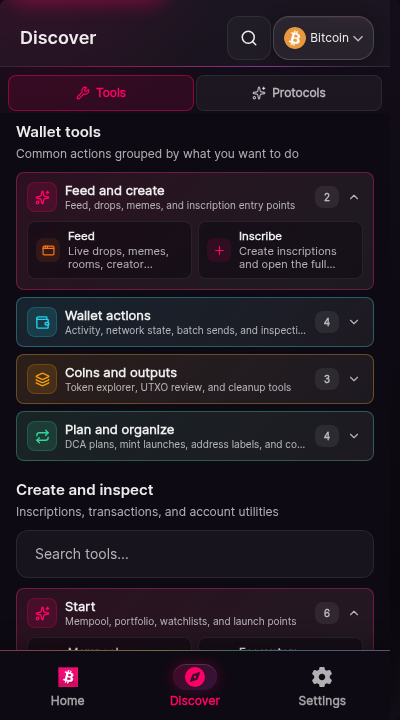
Wallet tools hub - The discover hub listing wallet tools. Entries that need an unauthorized operation are inert here. Wallet tools hub (discover--light--400)
The discover hub screen. A grid of wallet tool cards covers portfolio analytics, the NFT gallery, and other utilities. Cards whose underlying operation is not authorized in this release render in a muted unavailable state.
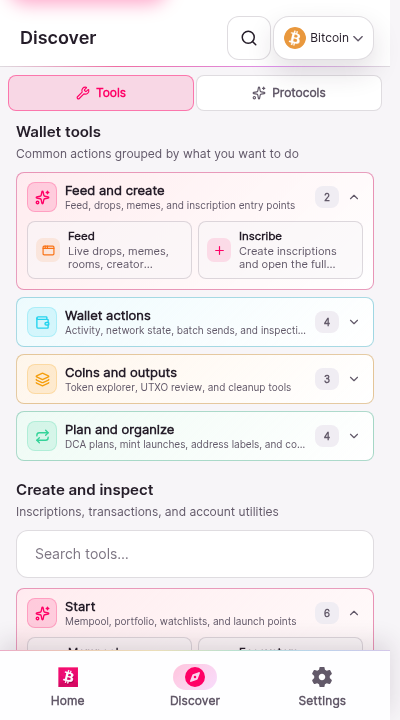
Wallet tools hub - The discover hub listing wallet tools. Entries that need an unauthorized operation are inert here. Transaction history, offline (history--dark--360)
The activity screen showing a load failure. Text explains that transaction history could not be loaded and offers a retry control. No transactions are listed.
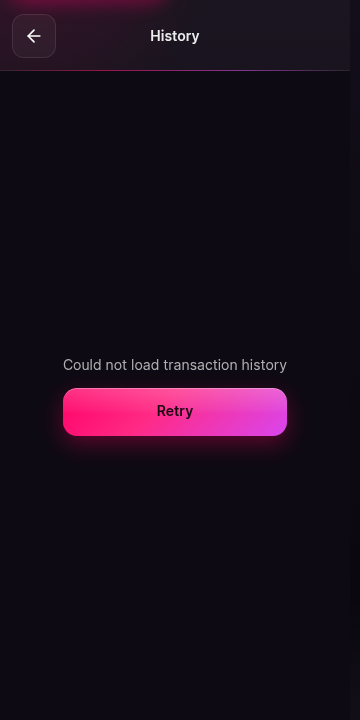
Transaction history, offline - History while the wallet cannot reach its indexers: an explicit failure state, not a silent empty list. Transaction history, offline (history--dark--400)
The activity screen showing a load failure. Text explains that transaction history could not be loaded and offers a retry control. No transactions are listed.
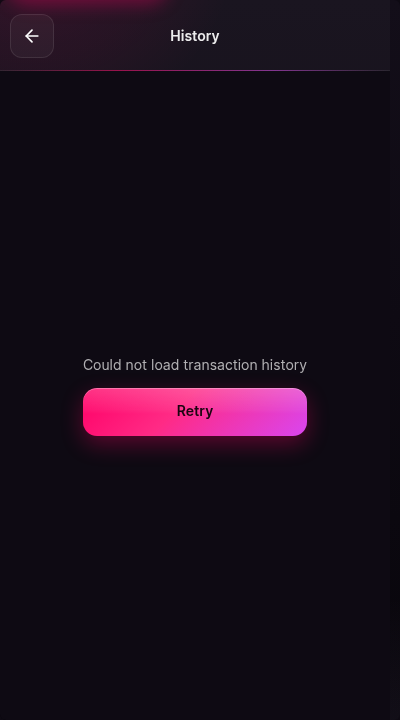
Transaction history, offline - History while the wallet cannot reach its indexers: an explicit failure state, not a silent empty list. Transaction history, offline (history--light--400)
The activity screen showing a load failure. Text explains that transaction history could not be loaded and offers a retry control. No transactions are listed.
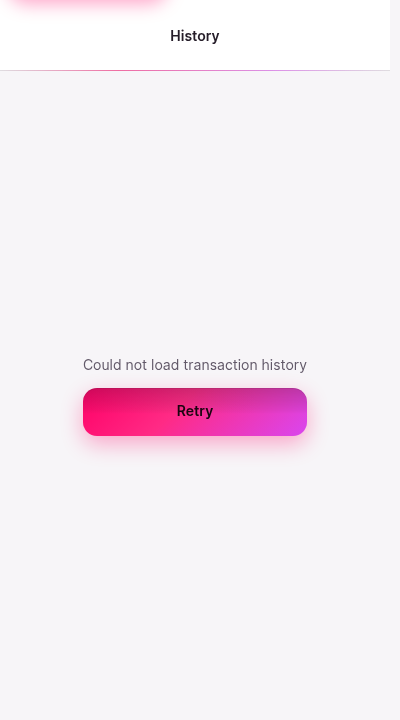
Transaction history, offline - History while the wallet cannot reach its indexers: an explicit failure state, not a silent empty list. Home, empty wallet (home--dark--1100)
The home screen of Universe Wallet with a zero balance and no transaction history. A header shows the account name and the current network. The main area invites the user to receive their first funds. A protocol bar states that no protocol is authorized in this build.
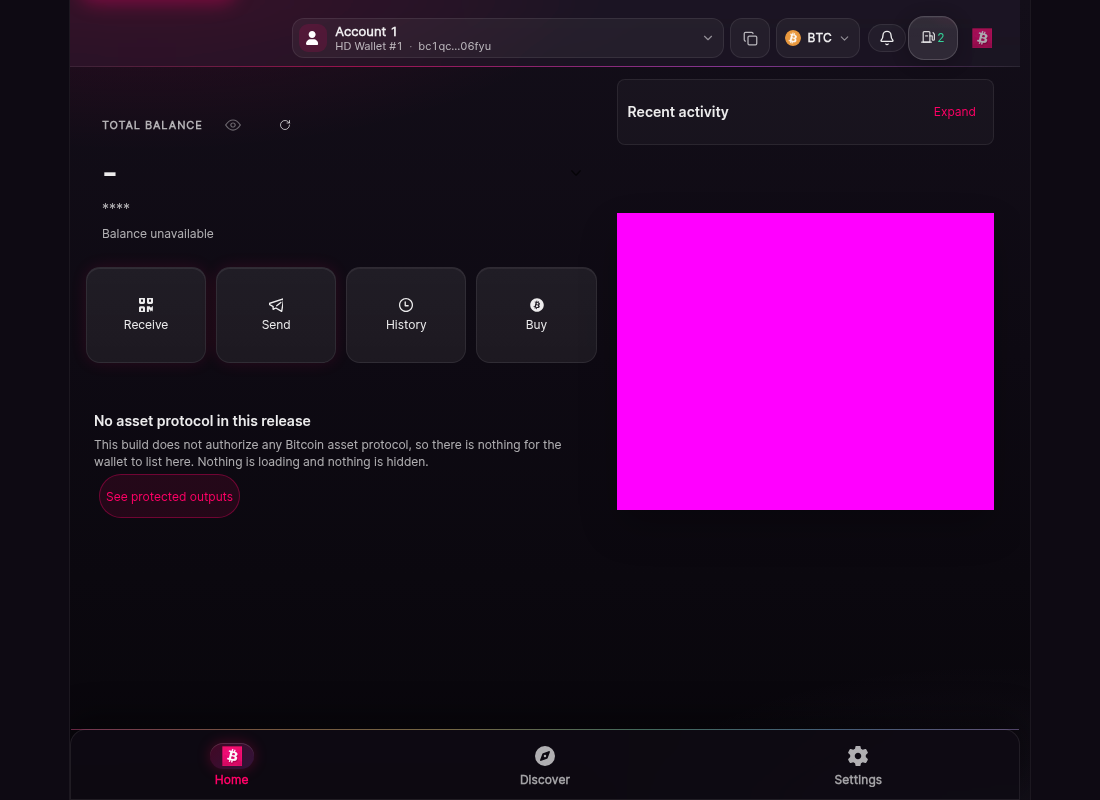
Home, empty wallet - Home for a wallet with nothing in it yet. The fail-closed protocol bar shows no authorized protocol. Home, empty wallet (home--dark--360)
The home screen of Universe Wallet with a zero balance and no transaction history. A header shows the account name and the current network. The main area invites the user to receive their first funds. A protocol bar states that no protocol is authorized in this build.
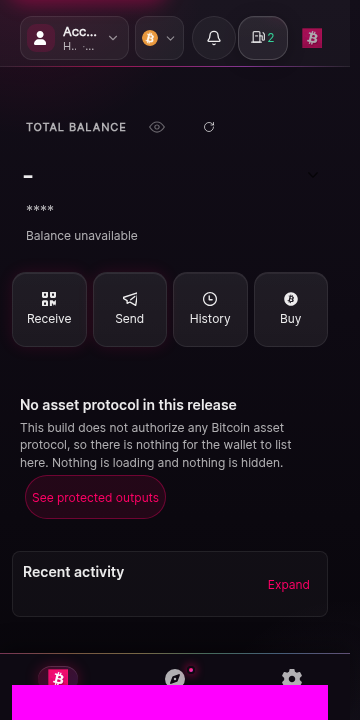
Home, empty wallet - Home for a wallet with nothing in it yet. The fail-closed protocol bar shows no authorized protocol. Home, empty wallet (home--dark--400)
The home screen of Universe Wallet with a zero balance and no transaction history. A header shows the account name and the current network. The main area invites the user to receive their first funds. A protocol bar states that no protocol is authorized in this build.
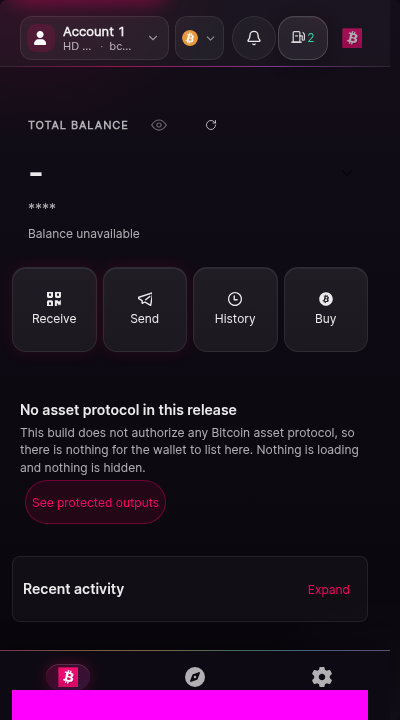
Home, empty wallet - Home for a wallet with nothing in it yet. The fail-closed protocol bar shows no authorized protocol. Home, empty wallet (home--dark--430)
The home screen of Universe Wallet with a zero balance and no transaction history. A header shows the account name and the current network. The main area invites the user to receive their first funds. A protocol bar states that no protocol is authorized in this build.
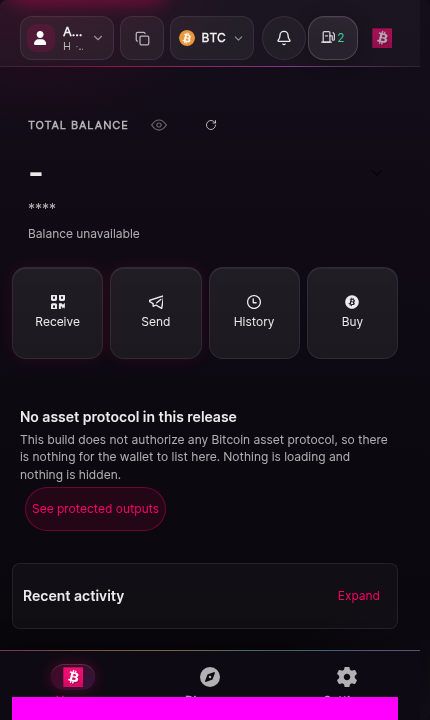
Home, empty wallet - Home for a wallet with nothing in it yet. The fail-closed protocol bar shows no authorized protocol. Home, empty wallet (home--dark--536)
The home screen of Universe Wallet with a zero balance and no transaction history. A header shows the account name and the current network. The main area invites the user to receive their first funds. A protocol bar states that no protocol is authorized in this build.
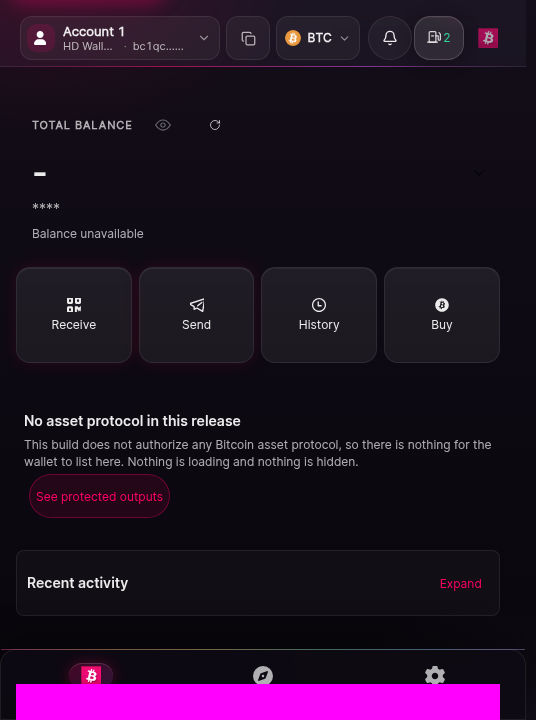
Home, empty wallet - Home for a wallet with nothing in it yet. The fail-closed protocol bar shows no authorized protocol. Home, empty wallet (home--light--400)
The home screen of Universe Wallet with a zero balance and no transaction history. A header shows the account name and the current network. The main area invites the user to receive their first funds. A protocol bar states that no protocol is authorized in this build.
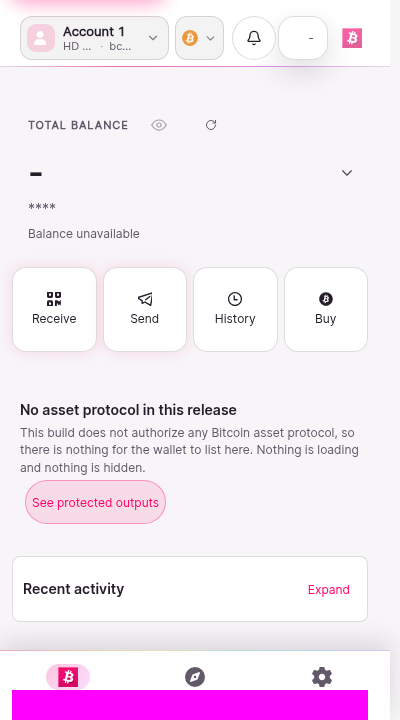
Home, empty wallet - Home for a wallet with nothing in it yet. The fail-closed protocol bar shows no authorized protocol. Home, empty wallet (home--oled--400)
The home screen of Universe Wallet with a zero balance and no transaction history. A header shows the account name and the current network. The main area invites the user to receive their first funds. A protocol bar states that no protocol is authorized in this build.
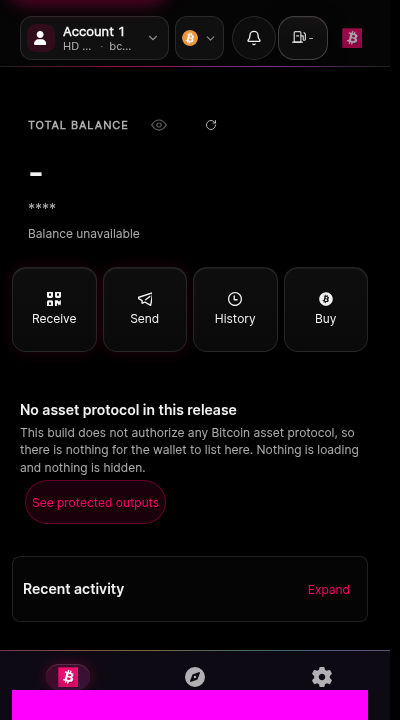
Home, empty wallet - Home for a wallet with nothing in it yet. The fail-closed protocol bar shows no authorized protocol. Home with a populated portfolio (home-populated--dark--360)
The home screen populated from the performance lab synthetic fixture. A balance block shows a total, an available portion, and a held-back portion with an ownership line. The protected-output summary lists held outputs. The network header and account switcher sit above.
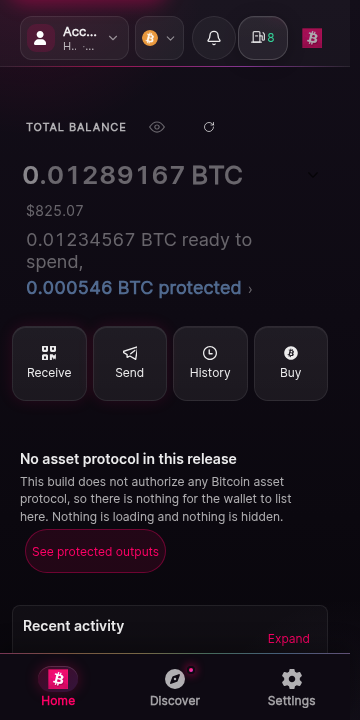
Home with a populated portfolio - Home answered from the synthetic portfolio fixture: real balance anatomy, ownership line, and protected-output summary with real numbers. Home with a populated portfolio (home-populated--dark--400)
The home screen populated from the performance lab synthetic fixture. A balance block shows a total, an available portion, and a held-back portion with an ownership line. The protected-output summary lists held outputs. The network header and account switcher sit above.
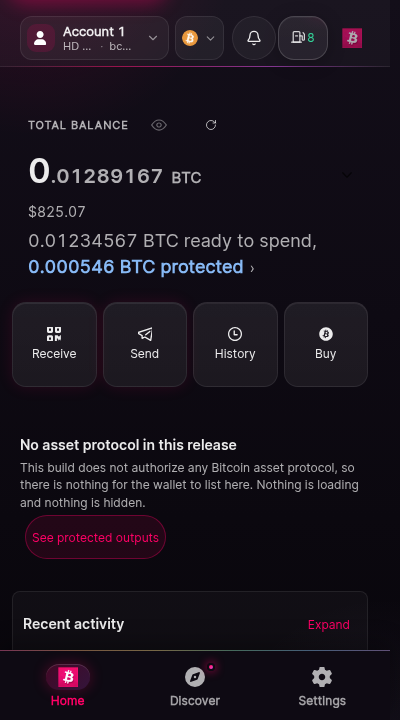
Home with a populated portfolio - Home answered from the synthetic portfolio fixture: real balance anatomy, ownership line, and protected-output summary with real numbers. Home with a populated portfolio (home-populated--light--400)
The home screen populated from the performance lab synthetic fixture. A balance block shows a total, an available portion, and a held-back portion with an ownership line. The protected-output summary lists held outputs. The network header and account switcher sit above.
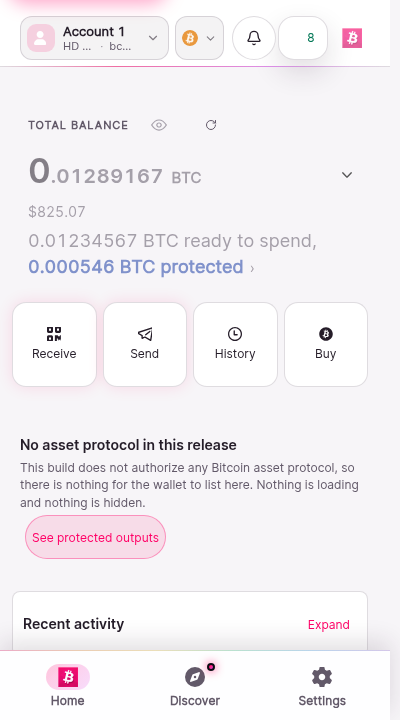
Home with a populated portfolio - Home answered from the synthetic portfolio fixture: real balance anatomy, ownership line, and protected-output summary with real numbers. Protected outputs, empty (locked-utxos--dark--400)
The protected outputs screen in its empty state. A header reads Protected outputs. Body text explains that outputs held back by the wallet appear here and that none are currently held.
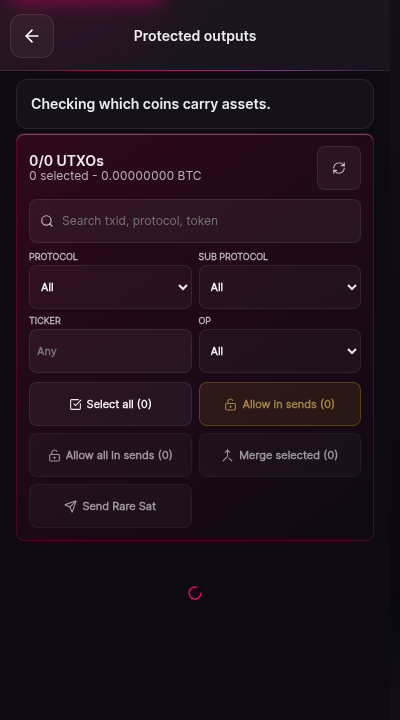
Protected outputs, empty - The protected outputs screen with nothing held back yet. Protected outputs, empty (locked-utxos--light--400)
The protected outputs screen in its empty state. A header reads Protected outputs. Body text explains that outputs held back by the wallet appear here and that none are currently held.
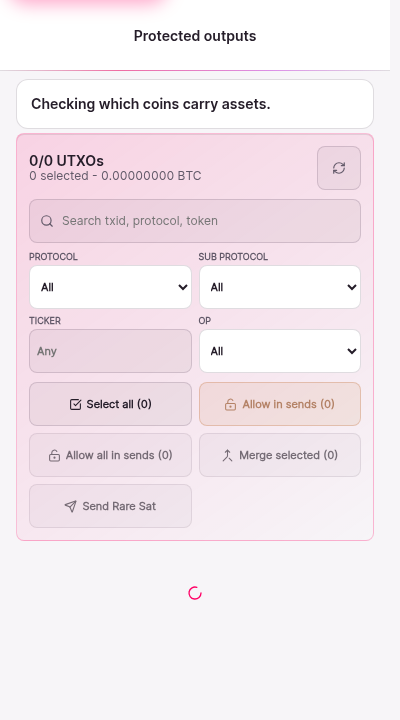
Protected outputs, empty - The protected outputs screen with nothing held back yet. NFT gallery, offline (nft-gallery--dark--400)
The NFT gallery screen in its offline state. The header reads NFT Gallery. The grid area shows an explicit unavailable state rather than an empty grid.
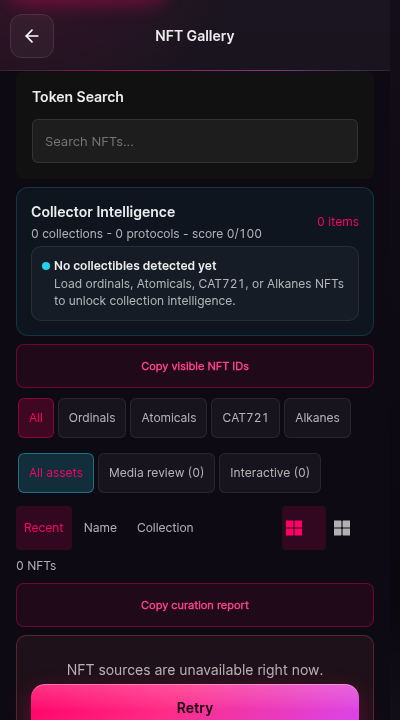
NFT gallery, offline - The gallery screen while its index is unreachable. NFT gallery, offline (nft-gallery--light--400)
The NFT gallery screen in its offline state. The header reads NFT Gallery. The grid area shows an explicit unavailable state rather than an empty grid.
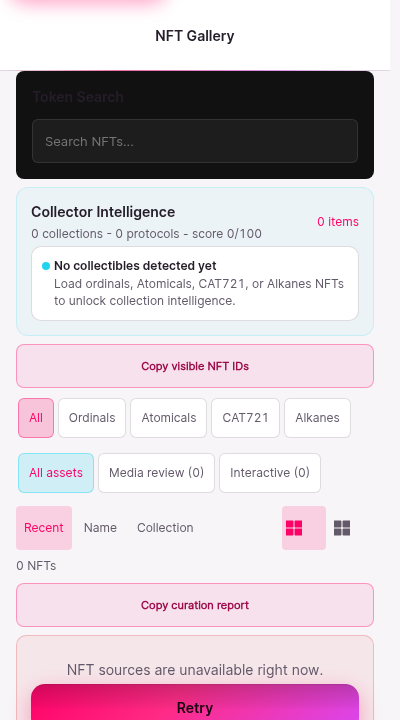
NFT gallery, offline - The gallery screen while its index is unreachable. Portfolio analytics, offline (portfolio--dark--400)
The portfolio analytics screen in its offline state. The header reads Portfolio. The chart area shows an explicit unavailable state rather than an empty chart.
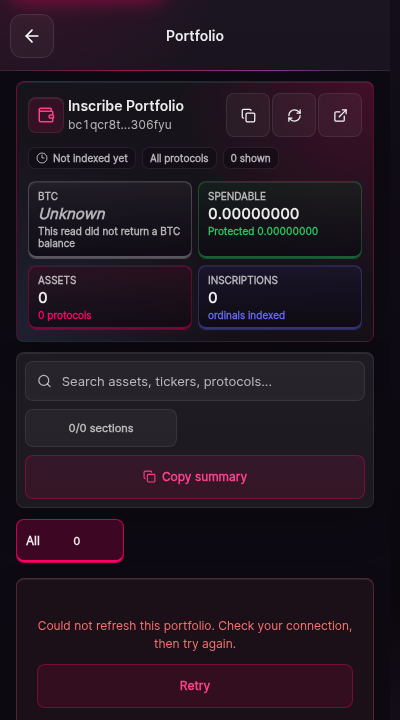
Portfolio analytics, offline - Portfolio analytics settling into its offline state when no index answers. Portfolio analytics, offline (portfolio--light--400)
The portfolio analytics screen in its offline state. The header reads Portfolio. The chart area shows an explicit unavailable state rather than an empty chart.
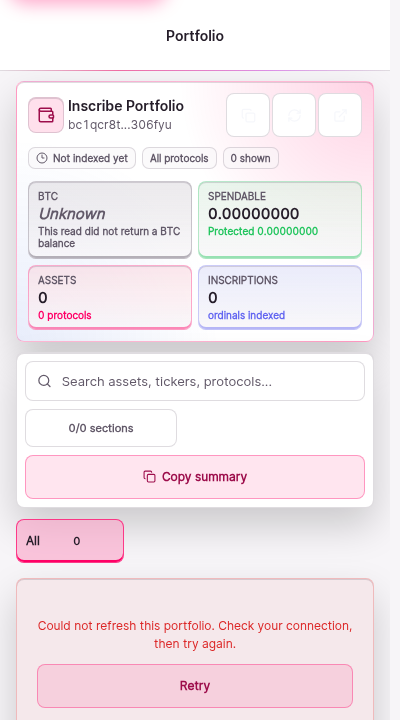
Portfolio analytics, offline - Portfolio analytics settling into its offline state when no index answers. Protected outputs, populated (protected-outputs-populated--dark--400)
The protected outputs screen populated from the synthetic fixture. Each row lists an output, the amount held back, and the reason it is held. A summary line totals the held amount.
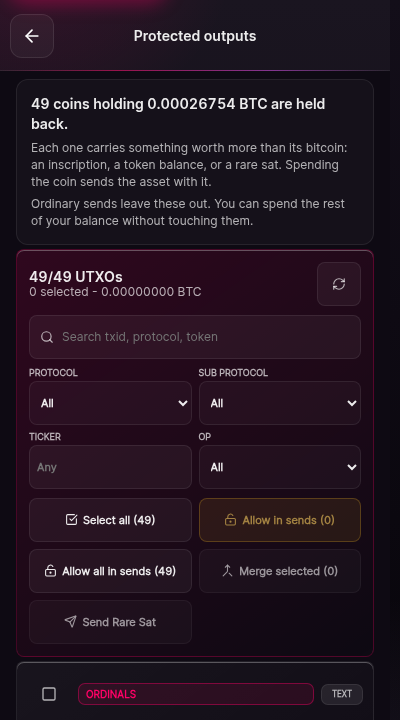
Protected outputs, populated - Held-back outputs listed with the reasons the wallet is holding them. Protected outputs, populated (protected-outputs-populated--light--400)
The protected outputs screen populated from the synthetic fixture. Each row lists an output, the amount held back, and the reason it is held. A summary line totals the held amount.
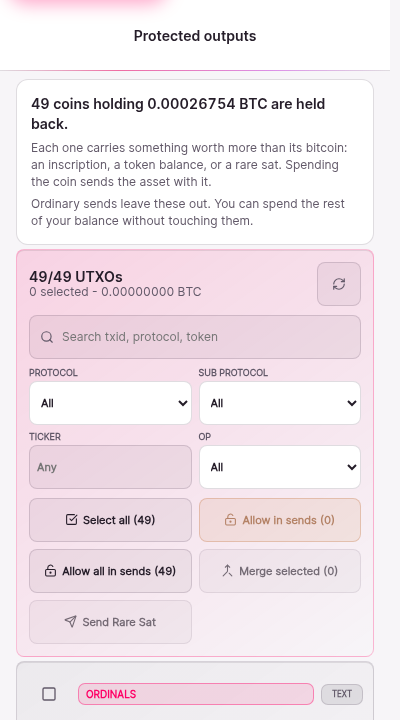
Protected outputs, populated - Held-back outputs listed with the reasons the wallet is holding them. Receive (receive--dark--360)
The receive screen. Text states the wallet is ready to receive. Controls for choosing the receiving address and copying or revealing it appear once an address is selected. The network name is shown near the header.
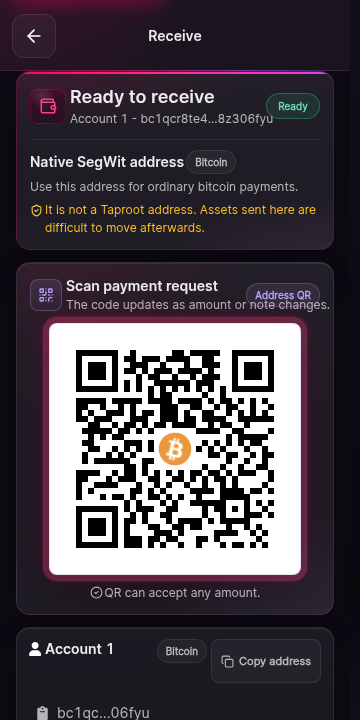
Receive - The receiving screen before an address is requested, showing the readiness state. Receive (receive--dark--400)
The receive screen. Text states the wallet is ready to receive. Controls for choosing the receiving address and copying or revealing it appear once an address is selected. The network name is shown near the header.
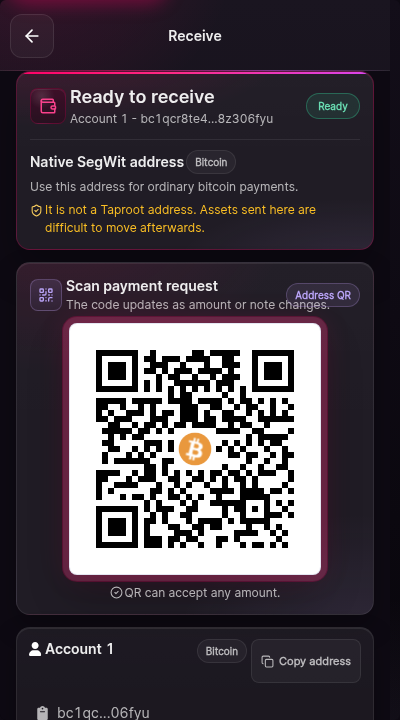
Receive - The receiving screen before an address is requested, showing the readiness state. Receive (receive--light--400)
The receive screen. Text states the wallet is ready to receive. Controls for choosing the receiving address and copying or revealing it appear once an address is selected. The network name is shown near the header.
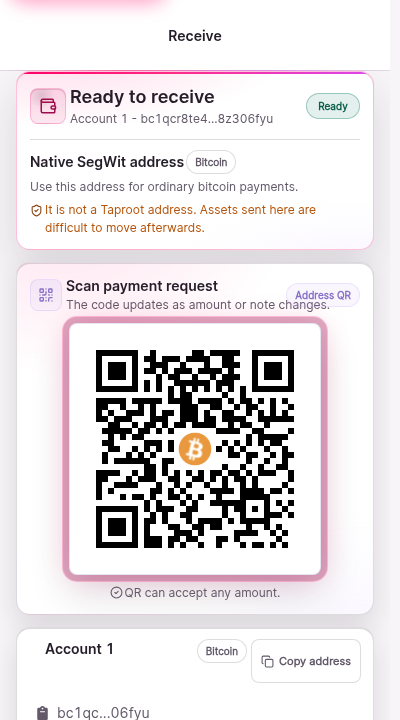
Receive - The receiving screen before an address is requested, showing the readiness state. Import source selection (restore-source--dark--360)
A selection screen listing import sources as radio cards. The Unisat Wallet card is highlighted because the walk selected it. Each card names a source and a short description of what it imports.
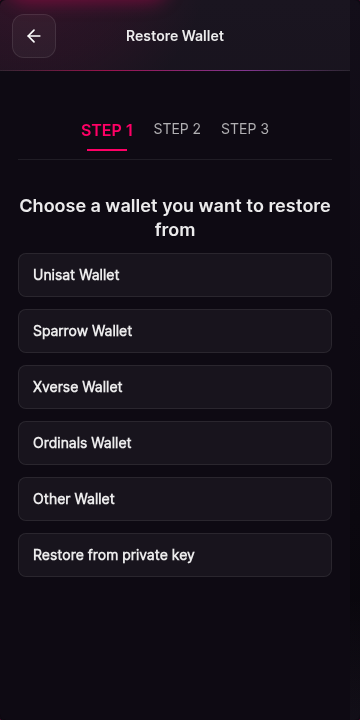
Import source selection - Choosing where an imported wallet comes from. The wallet only accepts the sources it can verify. Import source selection (restore-source--dark--400)
A selection screen listing import sources as radio cards. The Unisat Wallet card is highlighted because the walk selected it. Each card names a source and a short description of what it imports.
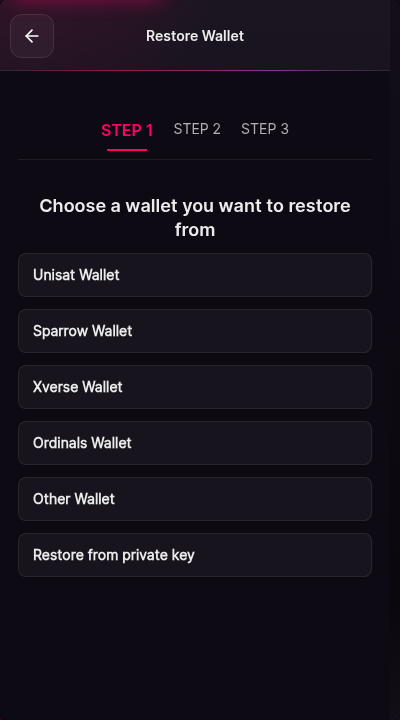
Import source selection - Choosing where an imported wallet comes from. The wallet only accepts the sources it can verify. Recovery phrase entry (seed-import--dark--360)
A grid of twelve input boxes, one per recovery word, shown with masked characters because secure input is enabled. A toggle labelled secure input controls masking. A Continue button sits at the bottom.
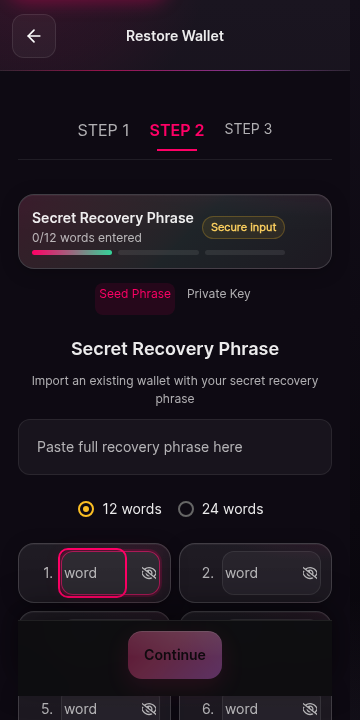
Recovery phrase entry - The twelve-word entry grid with secure input on. Words are masked while typing; nothing here is ever photographed or pasted for real recovery material. Recovery phrase entry (seed-import--dark--400)
A grid of twelve input boxes, one per recovery word, shown with masked characters because secure input is enabled. A toggle labelled secure input controls masking. A Continue button sits at the bottom.
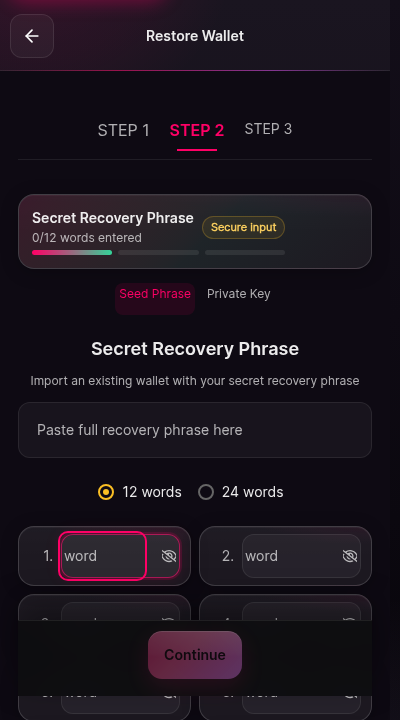
Recovery phrase entry - The twelve-word entry grid with secure input on. Words are masked while typing; nothing here is ever photographed or pasted for real recovery material. Send, fail-closed state (send--dark--360)
The send screen in its fail-closed state. Instead of a transfer form, a panel explains that this build cannot send because its release authorizes no sending operation. No address field, amount field, or approve control is shown.
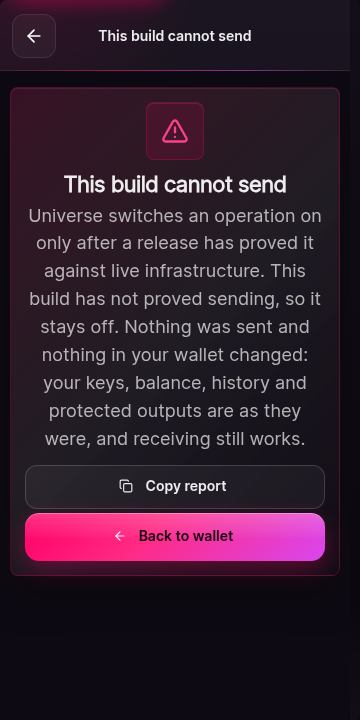
Send, fail-closed state - What Send shows in a build whose release authorizes no sending: a plain statement that this build cannot send. Send, fail-closed state (send--dark--400)
The send screen in its fail-closed state. Instead of a transfer form, a panel explains that this build cannot send because its release authorizes no sending operation. No address field, amount field, or approve control is shown.
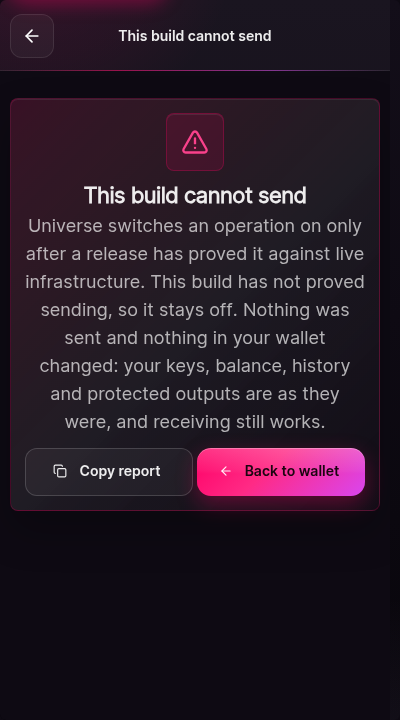
Send, fail-closed state - What Send shows in a build whose release authorizes no sending: a plain statement that this build cannot send. Send, fail-closed state (send--light--400)
The send screen in its fail-closed state. Instead of a transfer form, a panel explains that this build cannot send because its release authorizes no sending operation. No address field, amount field, or approve control is shown.
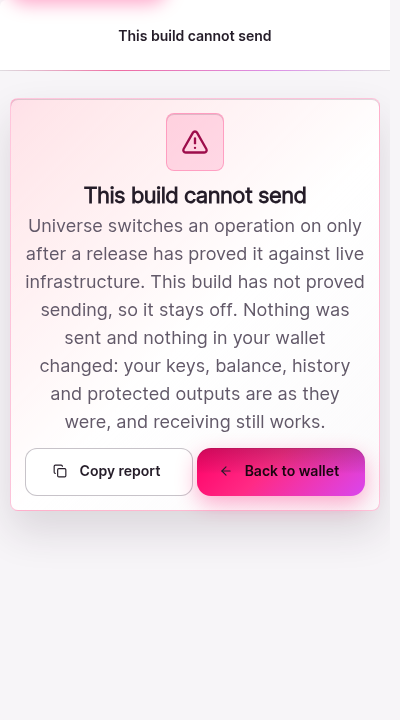
Send, fail-closed state - What Send shows in a build whose release authorizes no sending: a plain statement that this build cannot send. Settings (settings--dark--1100)
The settings screen. Sections list backup status with a call to back up the wallet, security entries, appearance, network, and about information with the wallet version.
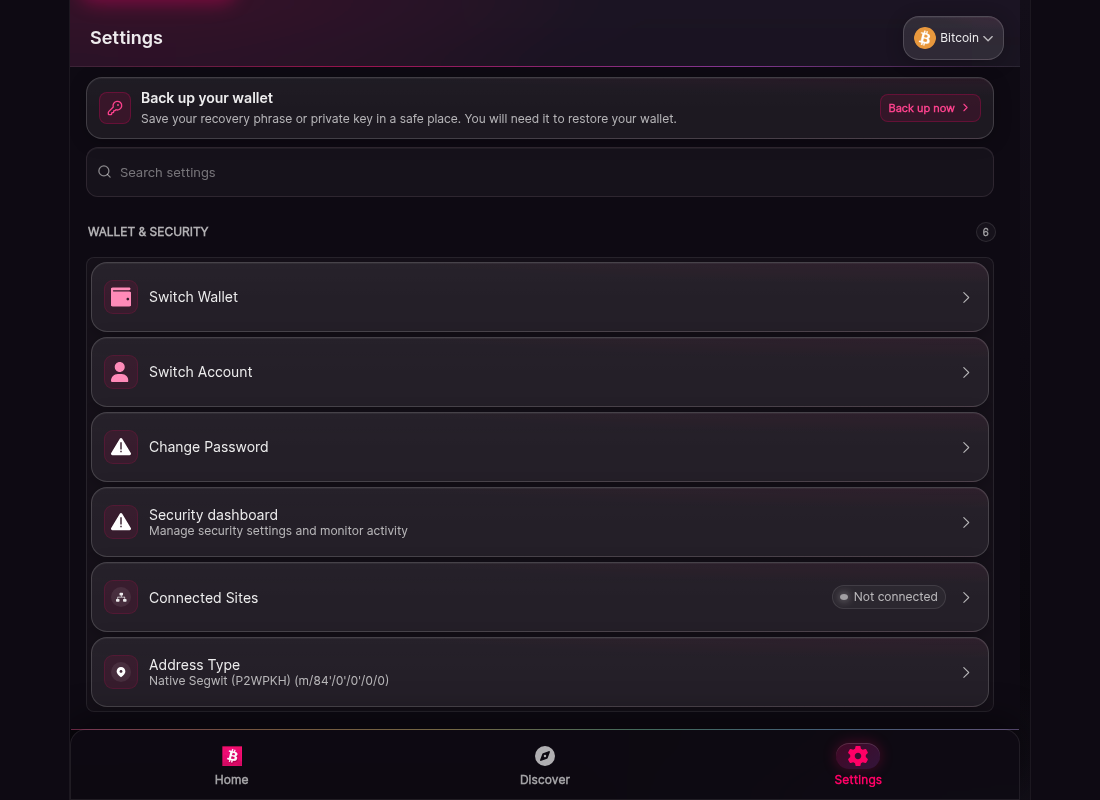
Settings - The settings root, including backup status and the appearance entry. Settings (settings--dark--360)
The settings screen. Sections list backup status with a call to back up the wallet, security entries, appearance, network, and about information with the wallet version.
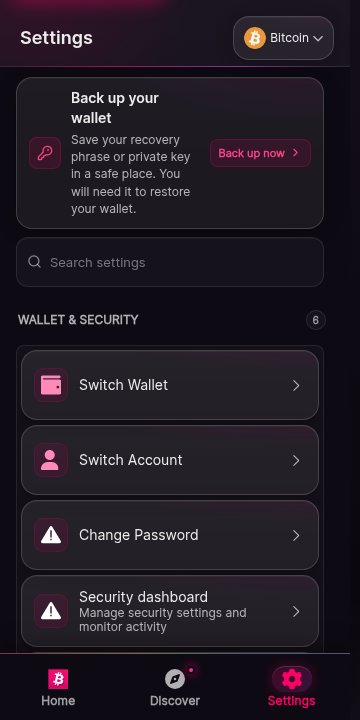
Settings - The settings root, including backup status and the appearance entry. Settings (settings--dark--400)
The settings screen. Sections list backup status with a call to back up the wallet, security entries, appearance, network, and about information with the wallet version.
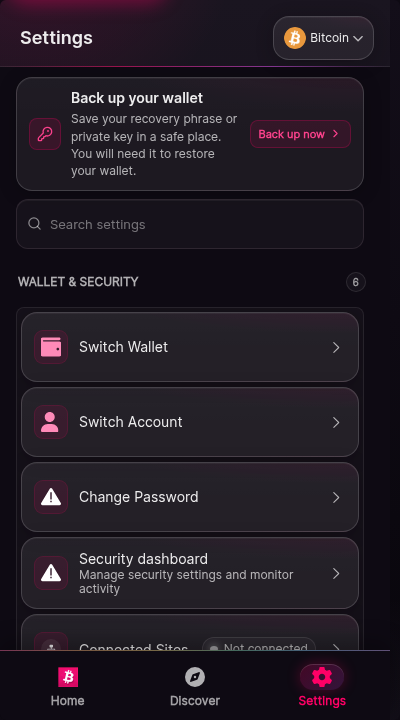
Settings - The settings root, including backup status and the appearance entry. Settings (settings--light--400)
The settings screen. Sections list backup status with a call to back up the wallet, security entries, appearance, network, and about information with the wallet version.
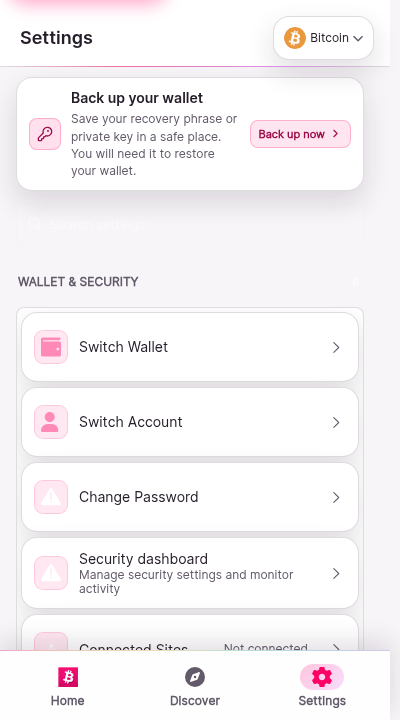
Settings - The settings root, including backup status and the appearance entry. Settings (settings--oled--400)
The settings screen. Sections list backup status with a call to back up the wallet, security entries, appearance, network, and about information with the wallet version.
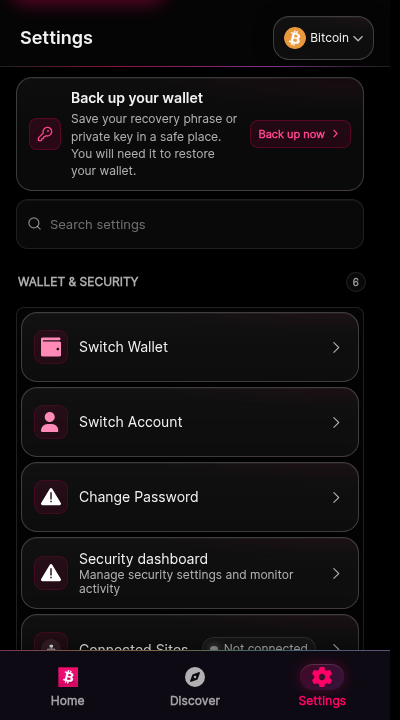
Settings - The settings root, including backup status and the appearance entry. Account switcher (switch-account--dark--400)
The account switcher screen. A list shows Account 1 with its balance and address fragment, and a control to add another account. The active account is marked.
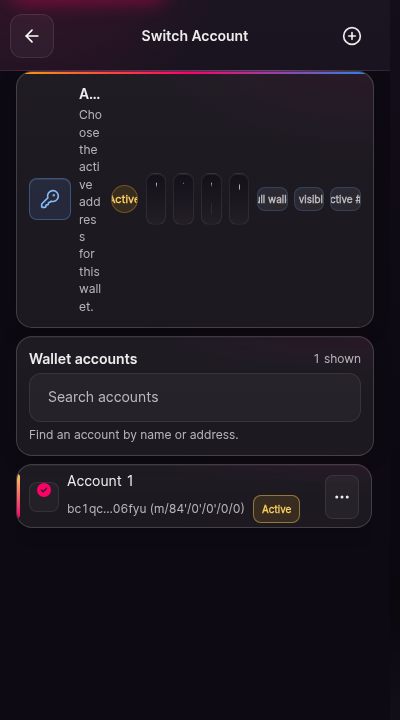
Account switcher - Switching between accounts. Balances for each account are listed beside its name. Account switcher (switch-account--light--400)
The account switcher screen. A list shows Account 1 with its balance and address fragment, and a control to add another account. The active account is marked.
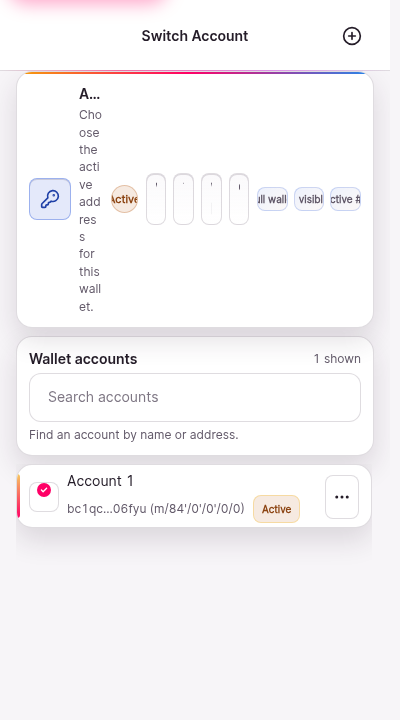
Account switcher - Switching between accounts. Balances for each account are listed beside its name. Appearance settings (theme-settings--dark--360)
The appearance screen. Three appearance profiles are offered as selectable cards: light, dark, and OLED black. The currently selected profile is marked.
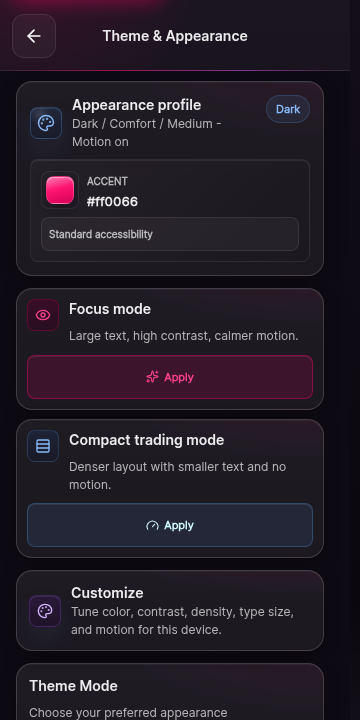
Appearance settings - Choosing between light, dark, and OLED appearance profiles. Appearance settings (theme-settings--dark--400)
The appearance screen. Three appearance profiles are offered as selectable cards: light, dark, and OLED black. The currently selected profile is marked.
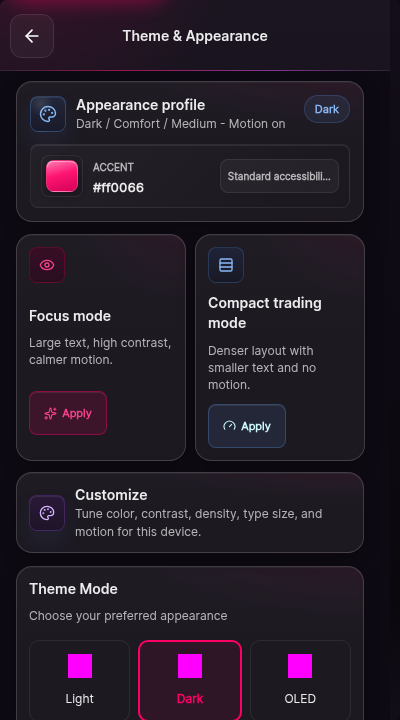
Appearance settings - Choosing between light, dark, and OLED appearance profiles. Appearance settings (theme-settings--light--400)
The appearance screen. Three appearance profiles are offered as selectable cards: light, dark, and OLED black. The currently selected profile is marked.
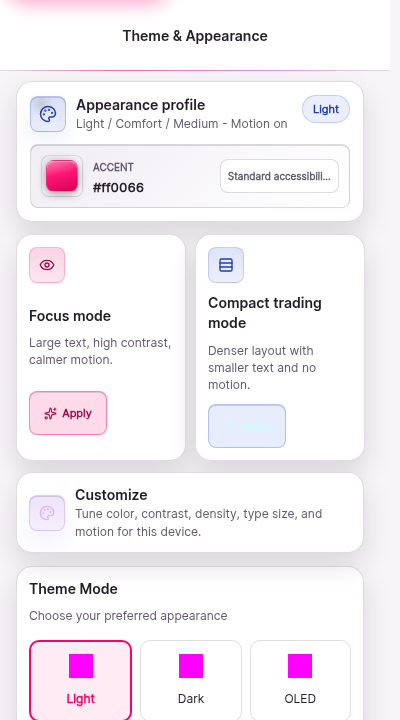
Appearance settings - Choosing between light, dark, and OLED appearance profiles. Welcome screen (welcome--dark--360)
Universe Wallet welcome screen on a dark background. The wallet wordmark sits above text welcoming the reader, and two actions are offered: create a new wallet, or import an existing wallet. A short line under the actions explains that keys are stored on this device.
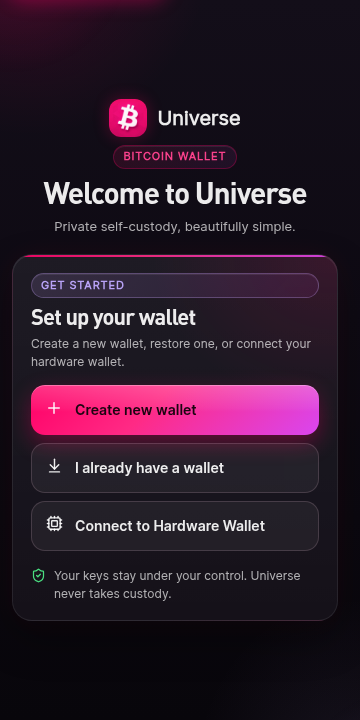
Welcome screen - The first screen a new installation shows, with the choice between creating a wallet and importing one. Welcome screen (welcome--dark--400)
Universe Wallet welcome screen on a dark background. The wallet wordmark sits above text welcoming the reader, and two actions are offered: create a new wallet, or import an existing wallet. A short line under the actions explains that keys are stored on this device.
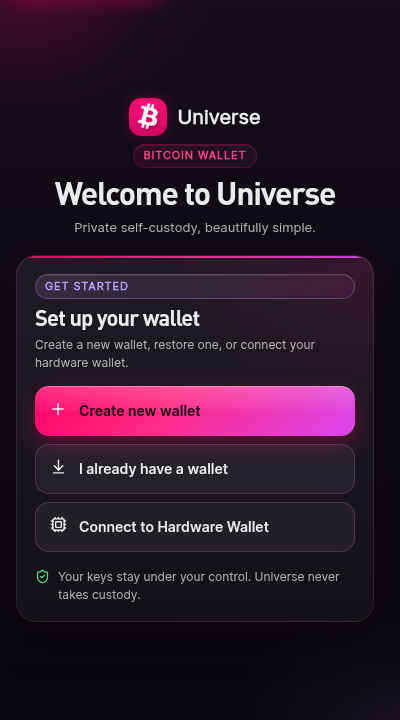
Welcome screen - The first screen a new installation shows, with the choice between creating a wallet and importing one.